How to Send YugabyteDB Anywhere Alerts to Microsoft Teams Workflows

October 26, 2026
In this blog, we walk you through how you can deliver YugabyteDB Anywhere (YBA) alerts to a Microsoft Teams channel as formatted Adaptive Cards.
1. Prerequisites
YugabyteDB Anywhere has no built-in Teams notification channel. The supported approach is:
Yugabyte Anywhere alert --> WebHook notification channel --> Teams Workflows webhook --> Teams channel (Adaptive Card)
To get started, you will need:
- A Microsoft Teams team and channel that will receive alerts.
- Permission to create a Workflow in that channel (Power Automate/Workflows app).
- YugabyteDB Anywhere admin access (to create notification channels and edit templates).
- Network access from YugabyteDB Anywhere to the Teams webhook host (outbound HTTPS, port 443).
2. Create the Teams Webhook
Step by step:
- In Teams, open the target channel
- Select More options (…) next to the channel name, then Workflows
- Choose the template Send webhook alerts to a channel
- Pick the team and channel, then click Save
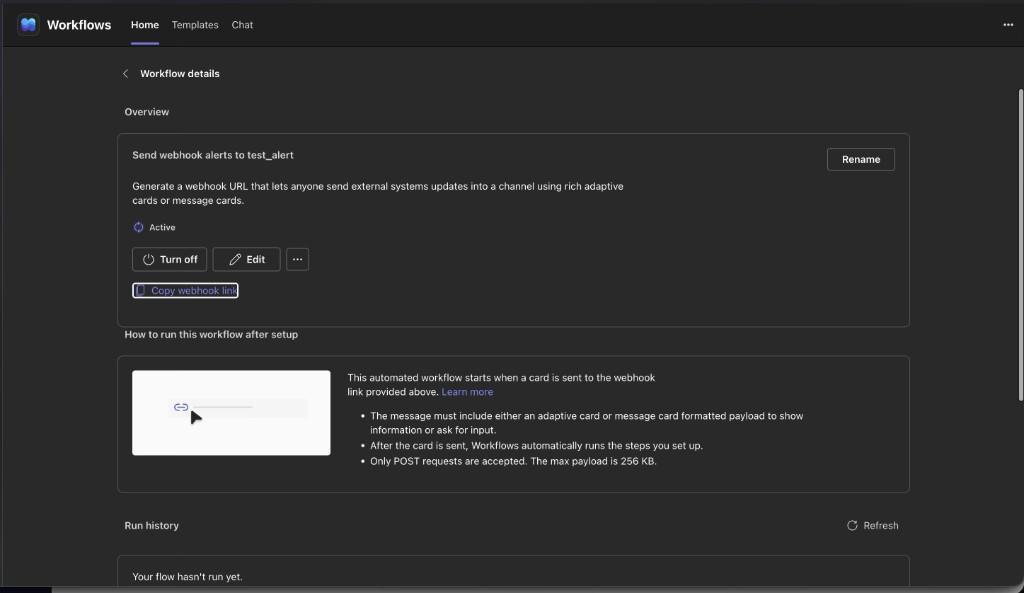
- On the Workflow details page, click Copy webhook link
Please note:
- The workflow must show Active
- The workflow only accepts POST requests, and the maximum payload is 256 KB
- The message must be an Adaptive Card or Message Card payload. Plain text is accepted by Azure, but nothing useful is posted
- Run history shows “Your flow hasn’t run yet” until the first successful call
3. Prepare the Webhook URL for YugabyteDB Anywhere (What to Change and Why)
The link copied from Teams workflow looks like this (the sig value is masked here; it is a secret):
https://default810c029bd2664f13a23a54b66cfb5f.83.environment.api.powerplatform.com:443/powerautomate/automations/direct/cu/30/workflows/a0936007f4834d7ea8f6d1e23047acab/triggers/manual/paths/invoke?api-version=1&sp=%2Ftriggers%2Fmanual%2Frun&sv=1.0&sig=<YOUR_SIGNATURE>
The URL to paste into YugabyteDB Anywhere
https://default810c029bd2664f13a23a54b66cfb5f.83.environment.api.powerplatform.com:443/powerautomate/automations/direct/cu/30/workflows/a0936007f4834d7ea8f6d1e23047acab/triggers/manual/paths/invoke?api-version=1&sp=/triggers/manual/run&sv=1.0&sig=<YOUR_SIGNATURE>
What Changes?
| Part | Copied from Teams | Paste into YugabyteDB Anywhere |
| sp parameter | sp=%2Ftriggers%2Fmanual%2Frun | sp=/triggers/manual/run |
| sig parameter | unchanged | unchanged (never edit it) |
| Everything else | unchanged | unchanged |
Only %2F becomes / inside sp.
Why is This Change Required?
Teams generate sp with %2F (an encoded /). When YugabyteDB Anywhere sends the webhook, its HTTP client encodes the URL again, so %2F can reach Azure as %252F, which no longer matches the signed value.
Azure checks the shared access signature (sp, sv, sig) before the workflow runs. A mismatch returns:
Error sending WebHook message for alert ...: error response 401 received with body
{"error":{"code":"AuthorizationFailed","message":"You do not have permissions to
perform action 'run' on scope '/triggers/manual/paths/'. ..."}}
This 401 does not mean the user lacks permission. It means the signature check failed because the URL was altered in transit. Using a literal / in sp avoids the double encoding.
Other things that also break the signature:
- Truncating the URL or leaving a trailing space/newline in the field
- Appending extra query parameters after sig
- Regenerating the workflow or its access key after copying the URL (the old sig becomes invalid)
Security Note
The sig value is a credential. Anyone with the full URL can post into your channel. Do not share it in tickets or chat. If it is exposed, regenerate the webhook link in the workflow and update YugabyteDB Anywhere.
4. Test the Teams Webhook URL with curl
Run the curl command below from any machine that can reach the webhook host. It sends a minimal Adaptive Card.
curl -i -X POST 'PASTE_THE_FULL_TEAMS_WEBHOOK_URL_HERE' \
  -H 'Content-Type: application/json' \
  -d '{"type":"message","attachments":  [{"contentType":"application/vnd.microsoft.card.adaptive","content":{"type":"AdaptiveCard","version":"1.4","body":[{"type":"TextBlock","text":"Yugabyte test","wrap":true}]}}]}'
The expected result is HTTP/2 202 with an x-ms-workflow-run-id header:
- 202 means Azure accepted the request and started a workflow run
- 401 means the signature was altered. In this case, re-copy the URL and apply the change in section 3
The card then appears in the channel:
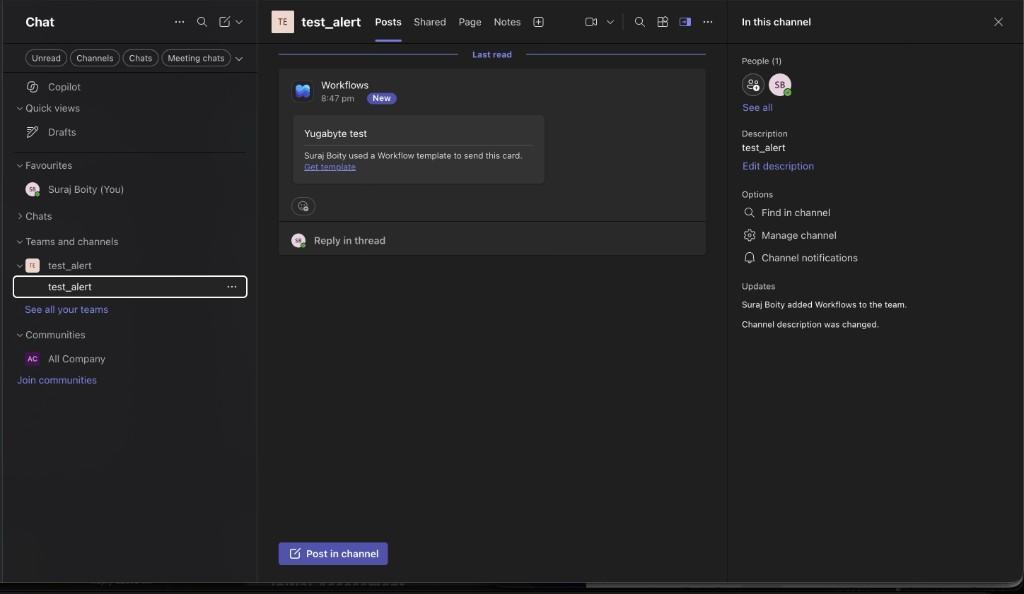
Refresh Run history on the workflow page; a new run should be listed.
5. Create the WebHook Notification Channel in YugabyteDB Anywhere
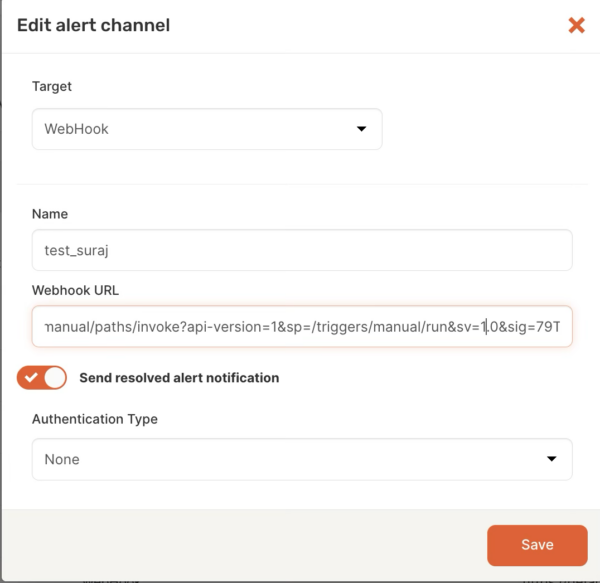
- In YugabyteDB Anywhere, go to Alert Configurations > Notification Channels
- Click Add Channel and select WebHook
- Fill in:
- Name: for example teams_alerts
- Webhook URL: the URL from section 3 (with sp=/triggers/manual/run)
- Authentication: None (the signature is already in the URL; do not use Basic or Token)
- Send resolved: enable it if you also want a notification when the alert clears
- Save the channel
Do not click Test yet.
Complete section 6 first so the test sends a card instead of the default payload.
6. Replace the Webhook Template with an Adaptive Card
By default, YugabyteDB Anywhere sends an Alertmanager-style JSON payload:
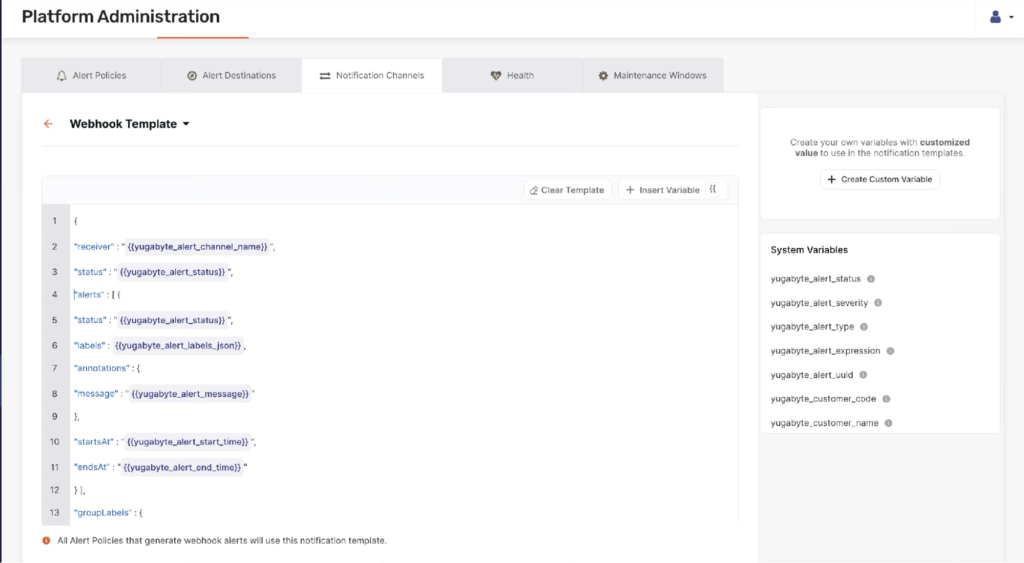
Teams Workflows does not render that structure; it only posts an Adaptive Card, so the template must be replaced.
Where to edit it?
- Alert Configurations > Notification Channels
- Click Customize Notification Templates
- Select Webhook Template
- Replace the text template with the card JSON below
- Click Save
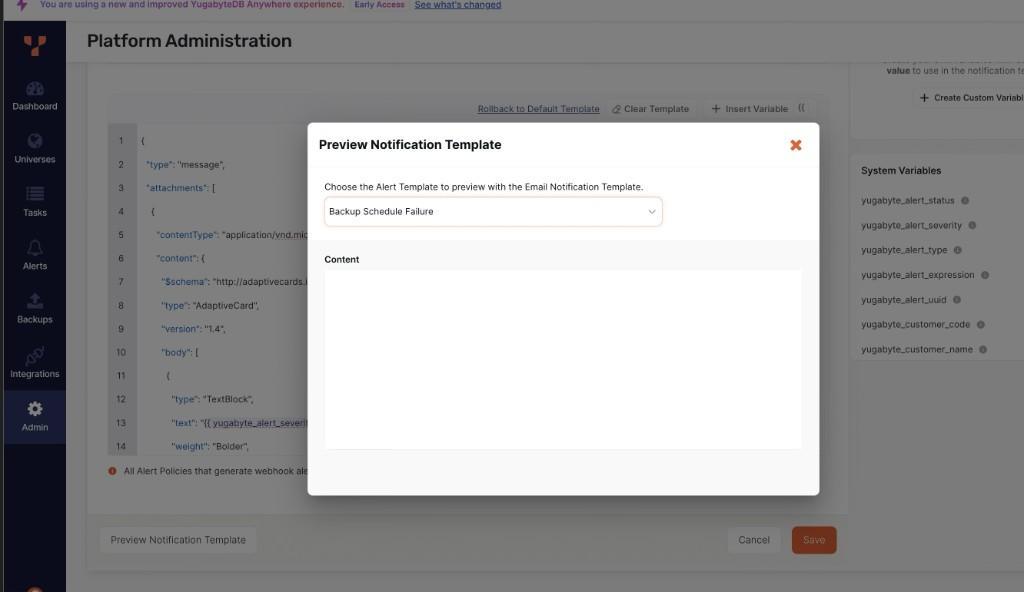
The Preview Notification Template dialog is designed for email and may display an empty Content box when used with a webhook JSON template. That is expected. Use the channel Test button to verify instead.
The Adaptive Card Template
Placeholders such as {{ yugabyte_alert_policy_name }} are replaced by YugabyteDB Anywhere when an alert fires.
{
  "type": "message",
  "attachments": [
    {
      "contentType": "application/vnd.microsoft.card.adaptive",
      "content": {
        "$schema": "http://adaptivecards.io/schemas/adaptive-card.json",
        "type": "AdaptiveCard",
        "version": "1.4",
        "body": [
          {
            "type": "ColumnSet",
            "columns": [
              {
                "type": "Column",
                "width": "auto",
                "verticalContentAlignment": "Center",
                "items": [
                  {
                    "type": "Image",
                    "url": "https://raw.githubusercontent.com/yugabyte/yugabyte-db/master/www/logo.png",
                    "size": "Small"
                  }
                ]
              },
              {
                "type": "Column",
                "width": "stretch",
                "verticalContentAlignment": "Center",
                "items": [
                  {
                    "type": "TextBlock",
                    "text": "Yugabyte Anywhere",
                    "weight": "Bolder",
                    "size": "Medium"
                  }
                ]
              },
              {
                "type": "Column",
                "width": "auto",
                "verticalContentAlignment": "Center",
                "items": [
                  {
                    "type": "TextBlock",
                    "text": "\u25cf {{ yugabyte_alert_status }}",
                    "color": "Attention",
                    "weight": "Bolder",
                    "horizontalAlignment": "Right"
                  }
                ]
              }
            ]
          },
          {
            "type": "TextBlock",
            "text": "{{ yugabyte_alert_policy_name }}",
            "weight": "Bolder",
            "size": "Large",
            "wrap": true,
            "spacing": "Medium"
          },
          {
            "type": "TextBlock",
            "text": "{{ yugabyte_alert_severity }}: {{ yugabyte_alert_message }}",
            "wrap": true,
            "color": "Attention",
            "spacing": "Medium"
          },
          {
            "type": "FactSet",
            "separator": true,
            "spacing": "Medium",
            "facts": [
              { "title": "Status", "value": "{{ yugabyte_alert_status }}" },
              { "title": "Source", "value": "{{ yugabyte_alert_source_name }}" },
              { "title": "Nodes", "value": "{{ yugabyte_affected_node_names }}" },
              { "title": "Started", "value": "{{ yugabyte_alert_start_time }}" },
              { "title": "Channel", "value": "{{ yugabyte_alert_channel_name }}" }
            ]
          }
        ]
      }
    }
  ]
}
Template Rules
- It must be valid JSON. YugabyteDB Anywhere parses it before sending
- The top level must be “type”: “message” with an attachments array
- Use only the yugabyte_* variables YugabyteDB Anywhere provides (see section 9). Other placeholders are treated as alert labels and may stay empty
- The logo is loaded from a public URL. If your Teams users cannot reach raw.githubusercontent.com, remove the first column or host the image internally
7. Attach the Channel to Alerts
A channel does not fire by itself.
- Go to Alert Configurations > Alert Destinations and create a destination that includes the
teams_alertschannel - Set that destination as the default, or assign it to specific alert policies under Alert Policies
- Return to Notification Channels, open the channel, and click Test
A successful test returns HTTP 2xx (Teams returns 202).
8. Verify Successful Results
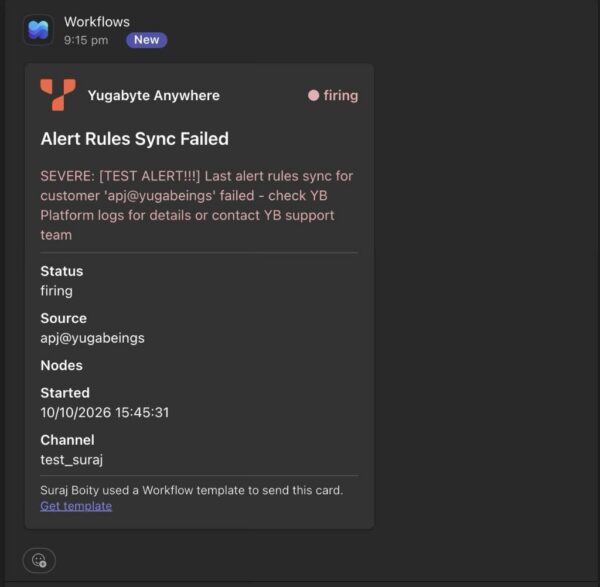
After saving the template and running Test (or when a real alert fires), the card below appears in the Teams channel. A verified test demonstrates that the Teams Workflow receives incoming alerts from YugabyteDB Anywhere and posts them into the specified Teams channel. The message displays the orange YugabyteDB logo alongside the Yugabyte Anywhere header, creating a clean format for database events. This enables operational engineers to instantly recognize incoming updates and examine key metrics within their primary workspace.
Checklist:
- The card should appear in the channel with the orange YugabyteDB logo and “Yugabyte Anywhere”
- The workflow Run history shows a successful run
- The status shows firing (or resolved when the alert clears)
9. How the Card Fields Map to Alert Data
| Card element | Placeholder | Meaning |
| Status (top right and row) | {{ yugabyte_alert_status }} | firing or resolved |
| Title | {{ yugabyte_alert_policy_name }} | Alert policy name |
| Red text | {{ yugabyte_alert_severity }}: {{ yugabyte_alert_message }} | WARNING or SEVERE, plus the alert text |
| Source | {{ yugabyte_alert_source_name }} | Universe name for universe alerts; customer for platform alerts |
| Nodes | {{ yugabyte_affected_node_names }} | Affected node names, empty when the alert is not node specific |
| Started | {{ yugabyte_alert_start_time }} | When the alert fired |
| Channel | {{ yugabyte_alert_channel_name }} | The YugabyteDB Anywhere notification channel name |
10. Troubleshooting
| Symptom | Cause | Fix |
| 401 AuthorizationFailed … ‘/triggers/manual/paths/’ | URL was re-encoded or altered, so the signature does not match | Use the URL from section 3 (sp=/triggers/manual/run), unchanged sig, no trailing space |
| 401 after regenerating the workflow | Old sig is no longer valid | Copy the new webhook link and apply section 3 again |
| curl returns 202 but nothing in Teams | Body is not an Adaptive Card or Message Card | Use the card wrapper in section 6 |
| Channel Test fails with a JSON error | Template is not valid JSON | Validate the JSON; keep all braces and quotes intact |
| Template preview shows empty content | Preview dialog targets email templates | Use the channel Test button |
| Card shows the wrong or no logo | Logo URL blocked or unreachable | Remove the logo column or host the image internally |
| Run history says “Your flow hasn’t run yet” | No valid request has reached Azure | Fix the URL (section 3) and test with curl |
| Alerts never arrive | Channel not attached to a destination or policy | Complete section 7 |
Caveat: YugabyteDB Anywhere uses a single webhook template for all alert channels. A Microsoft Teams Adaptive Card replaces that template for every channel. Webhook channels that expect the default JSON will stop working. Use the Microsoft Teams Adaptive Card template only if Teams is your only webhook channel.
11. Conclusion and Next Steps
Connecting YugabyteDB Anywhere to Microsoft Teams Workflows allows operations and database engineers to deliver alerts directly into their primary communication channel. Routing notifications to a shared room boosts visibility, accelerates incident resolution, and eliminates the need for constant dashboard checking.
In this walkthrough, we shared how to build the Teams Workflow, set up the WebHook channel within YugabyteDB Anywhere, adjust the payload template, and test message delivery.
Next Steps
Deploy this flow in a non-production setup, fire a sample event, and confirm the Adaptive Card renders properly. If other webhook endpoints exist in YugabyteDB Anywhere, determine how template updates affect them before pushing to production.
Test these steps in your environment and share any insights or feedback with the Yugabyte team.