Get Started with Meko: Agent Memory with Built-in Discernment

June 4, 2026
The journeyman approach helps you truly understand how things should be done. You don’t learn what matters versus what’s noise when you just read the manual. Ideally, you learn by working alongside someone more experienced and watching how they got to the answer, not just being told what the answer is.
AI agents don’t currently support the “learning while doing” process very well. There’s no hard-won path to mastery paved with the mistakes and scars that back up your experience when the final output is the only thing you share.
Tooling for agent memory exists, and chat clients and coding harnesses often have built-in recall options. Open source memory frameworks let you wire up vector-based memory yourself. However, this is restricted to one person in one tool in many cases.
Different AI agents (and human team members) never see how you worked through a problem with one particular agent, what you kept and rejected, or why you made decisions. Everyone starts from scratch every time, and none of it crosses between the AI tools you use. You can spend an afternoon in Cursor teaching your agent the shape of a tricky migration (what’s safe to touch, what broke last time), then open Claude Code the next morning and you’re explaining it all over again.
Meko was built to simplify that process, providing a data persistence layer available to your agents, independent of any single vendor. Your context follows you when you switch tools, and you choose what your agent learned that’s worth sharing. Even better, when you share it, the wider team also gets a window into how you got there. Private by default, shared by choice. Meko works over MCP, so you can plug it into whatever you’re already using.
This blog explores what each Meko component does, why it’s important, and the steps you need to take to try it for yourself!
Project Context Shouldn’t Be Restricted to One Vendor
You compartmentalize without thinking about it: work, side projects, your personal life, each gets its own space. Meko works the same way, and we call that a datapack. You can create one for each project you work on, and it’ll contain everything that’s related, including:
- Conversations
- Agent memories
- Any docs you upload to the knowledge base
- What actions each agent took in a traceable format
It persists between sessions, tools, and across time. Because it’s yours (not your AI vendor’s), you keep it, even if you switch them completely at some point or keep more than one going simultaneously.
Try it: Sign in to mekodata.ai (we’re in early access, so request access if you haven’t already).
- Go to datapacks
- You’ll already have a default one, so click on that
- This view shows you the path data travels through your datapack
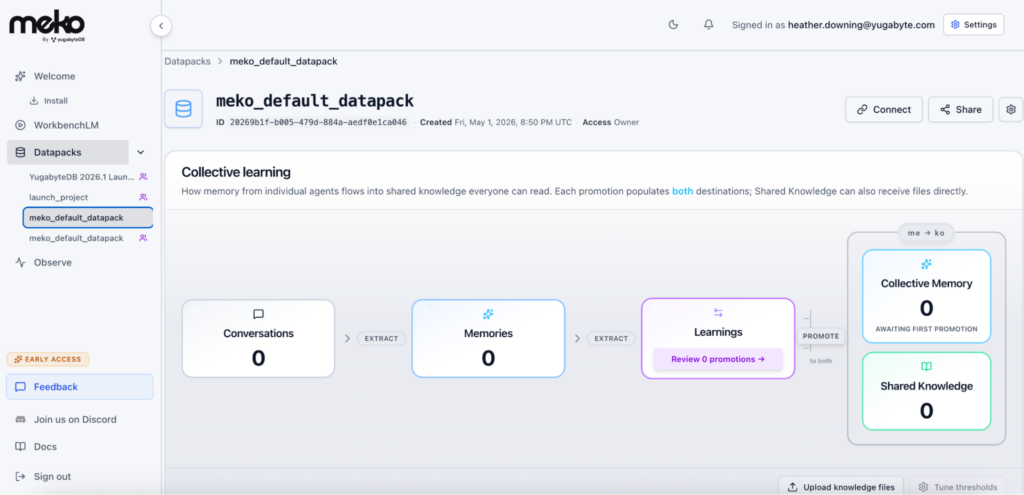
Want to see the exact conversation you had with your agent? That is stored in Conversations.
What perspective did the agent have? Those live in Memories. Recall is isolated to the agent.
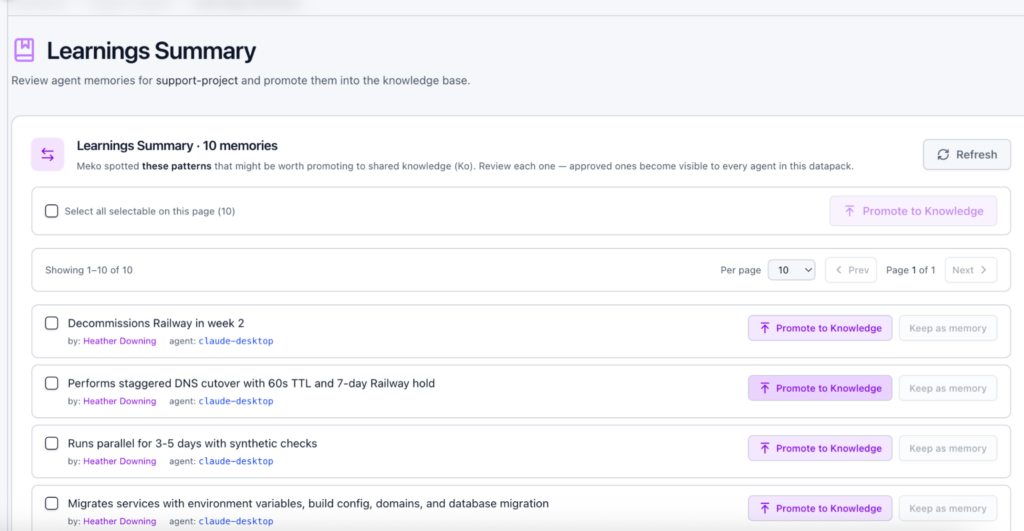
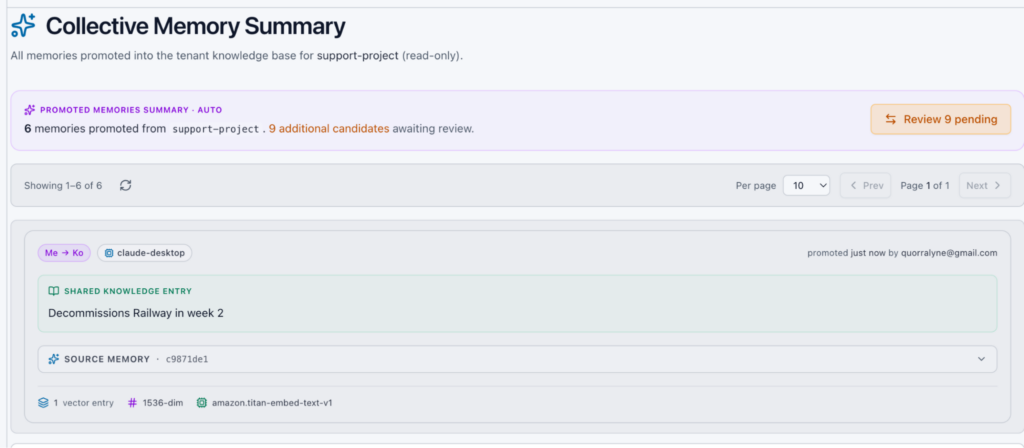
Is there something your other agents need to know? In Learnings, you can share the agent’s memories with others by promoting them to Collective Memory.
What files do you have in the knowledge base? Shared Knowledge provides a view of the documents you uploaded, so any user or agent with access to this datapack can search them.
Want to give another user access to this datapack? Share allows you to invite other users who can bring their own agents to access it, and allows you to configure levels of access.
How do I connect Meko to my AI agent? Connect guides you for direct installation, or go to Docs to see other options with OAuth and manual setups.
See What’s Happening Before You Get Started
Whether you’re using Claude, Codex (or any number of other AI tools), let’s take a look under the hood before we connect them up to Meko.
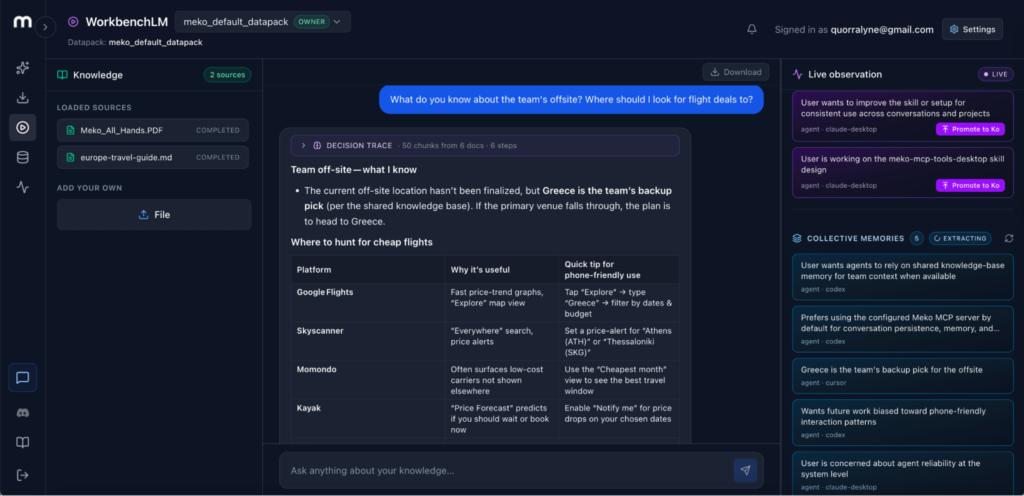
There’s a built-in chat in the portal called WorkbenchLM. It’s not the main product, as Meko is the data layer underneath. The chat lets you test out memory saving and retrieval without configuring anything, before moving on to using Meko via MCP.
Start a conversation. You’ll see it extracting memories in real time on the side panel. That’s Meko pulling out facts and details from what you’re saying and storing them so they persist. Some of those memories will be useful, and some won’t. That distinction will matter later when you start sharing.
Try it: Open WorkbenchLM from the portal and have a few exchanges. Watch the memories panel on the right; it shows your agent building context that will persist after the conversation ends.
Your Memory Trapped in Agent Conversations
Many developers switch between Codex and Claude Code regularly, not to mention other third-party coding harnesses like Cursor, Copilot, etc. Non-technical users also switch between desktop apps like Claude Cowork and ChatGPT. Each one has its own memory, context, and version of what it knows about its projects. But none of them talk to each other.
Every time you switch tools, the memory you built up in one is gone. Andrej Karpathy has acknowledged this in his LLM Wiki concept. We agree with him, and that’s part of the Meko flow we’ve built.
Meko works with all of your agent harnesses by connecting over MCP. Any AI client that supports MCP servers can read and write to the same datapack. One source of truth, regardless of which tool you’re in today.
Try it: Time to connect your agent to Meko. First, grab your connection details. In the portal, open your datapack and click Connect; your MCP URL is listed there.
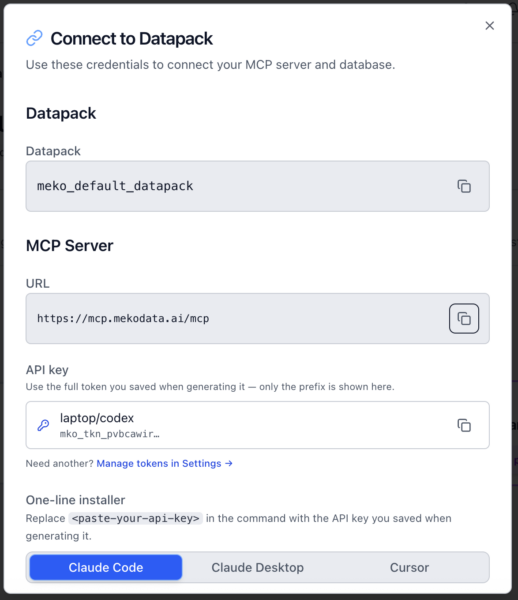
If you’re using our automated install flow, this screen is where you can access Settings to create an API key for that, along with the terminal command to run for a few example agent harnesses. There is also a guided interactive terminal setup by running: npx @yugabytedb/meko-mcp
If you don’t do terminals, that’s okay. You can work with Meko by configuring the MCP server directly in most popular AI clients.
For example, in Claude Desktop, go to Customize → Connectors → Add Custom Connector, set the Name to “Meko” and set the Remote MCP server URL to https://mcp.mekodata.ai/mcp and click add. You’ll see a Connect button that prompts you to authenticate with your Meko account and grant access.
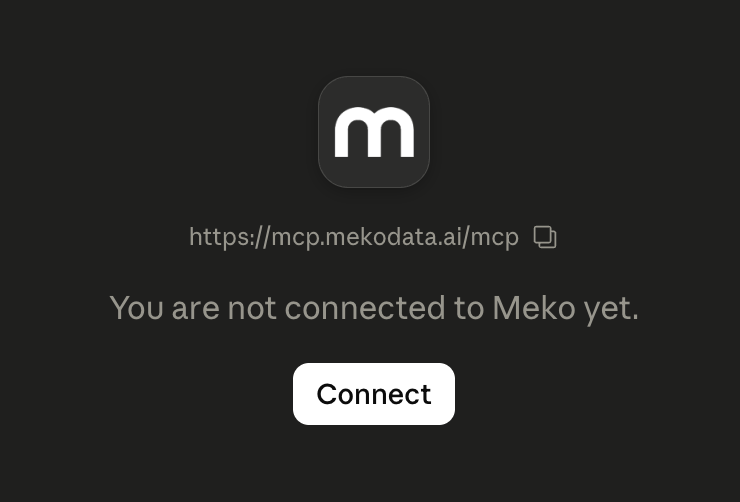
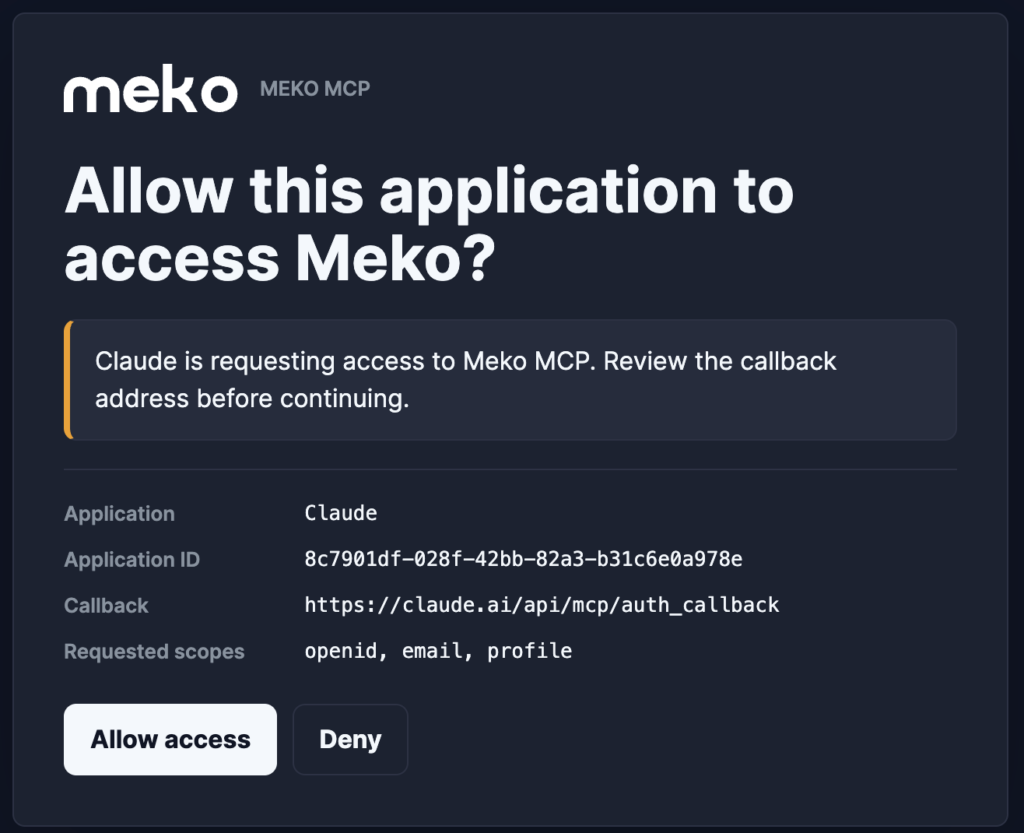
Sign in to your Meko account to authorize it and return to the connector screen. You should see the Meko tools show up in the connector settings.
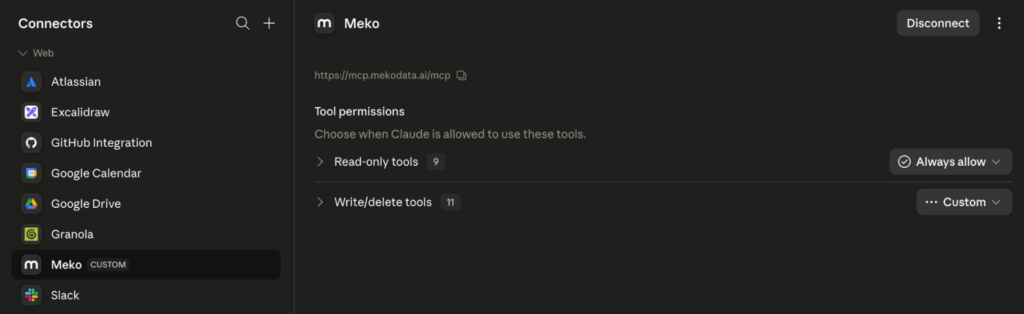
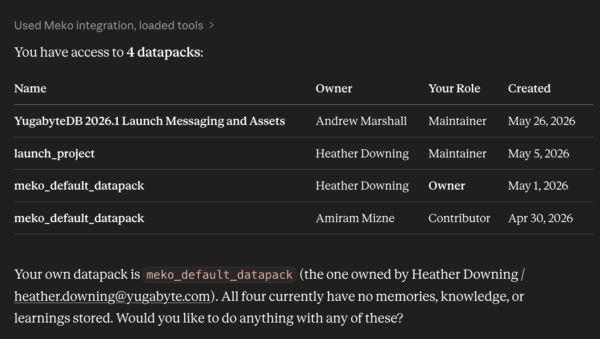
Start a new conversation and ask: “What datapacks do I have?” If your agent calls the datapack tool and lists yours, everything is wired up.
Does Your Context Survive Switching Tools?
Sure, your chat client will remember your preferences between sessions. But imagine building up a week’s worth of project context in one tool, then switching to a different client for a coding session. That context doesn’t follow.
With Meko, that context comes with you, because the memory lives in the datapack, not in the harness.
Just work normally, have a conversation, and do your regular stuff. Meko is extracting memories in the background based on what you’re talking about with your LLM. After a few interactions, try asking your agent: “What do you know about my current project?” Whether you’re in Claude, Cursor, or anything else that connects to the same datapack, it should be able to give you the correct answer. The context loads in about a second at the start of a new conversation; you don’t even notice it.
Try it: Work for a day in one tool, then open a different MCP-connected client pointed at the same datapack. Ask it what it knows. Here is Codex connected to the same account, for example.
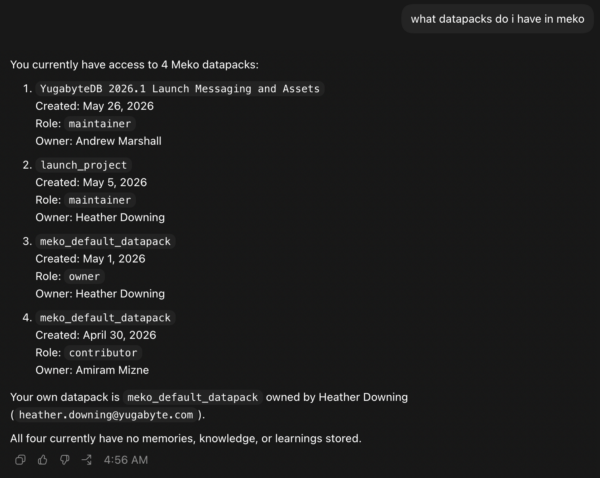
Each agent (Claude and Codex in this instance) will have their own memories stored in the datapack you choose to work with. If you want to share the memories between them, you must promote the learnings to collective memory in the portal.
Upload Knowledge Files So Everyone Can Use Them
Conversations are great for building context over time, but sometimes you need to frontload it. If you’re starting a new project, you don’t want to spend a week chatting before the agent knows your design docs exist.
Upload your docs to the knowledge base: PDFs, markdown files, text files (more coming soon). Meko chunks them, generates embeddings, and indexes everything so your agent can search it alongside the memories it’s already built up.
Try it: Go to your datapack in the portal, find the ‘Knowledge’ section, and upload. There’s a 5MB per-file limit right now, and it just takes a minute to process.
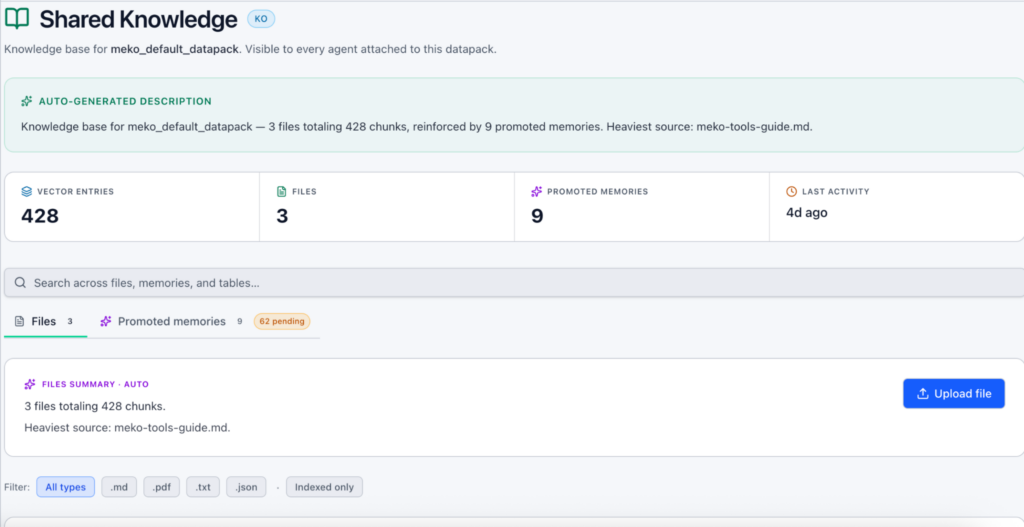
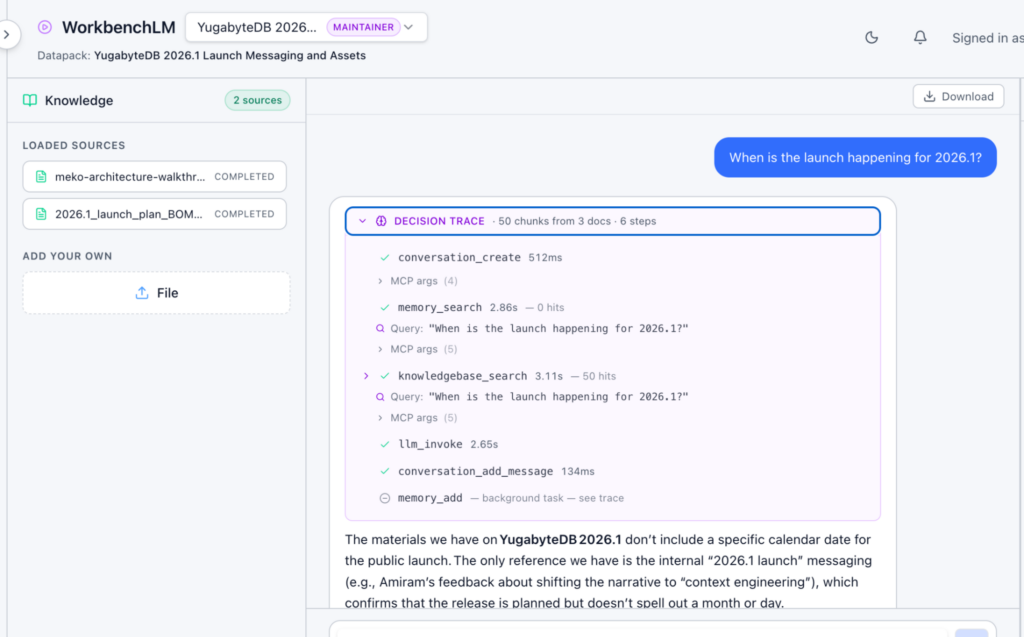
Once it’s done, ask your agent a question that requires information from those docs. It should pull directly from them. Using WorkbenchLM is a good way to preview the files you uploaded to the knowledge base. This knowledge retrieval will also work in your own AI client, like Claude or ChatGPT, through our MCP server.
If You Only Share the Final Answer, Nobody Learns Anything
When you use an agent, there are four parts to what you’re doing:
- Task (what you’re trying to get done)
- Context (what you told the model and what you left out)
- Interaction (how you prompted, what the first answer looked like, and how you pushed back)
- Review (what you accepted, what you rejected, what you rewrote, and why)
Most of that is invisible. You share the final decisions with your team, and nobody sees the judgment calls that shaped it, so they can’t learn from the corrections.
Nobody knows what you tried that didn’t work.
Mistakes are valuable learning tools, so why wouldn’t you share them? This happens naturally if you have a team working closely – but with AI agents, it’s often output-based. So your team (human or not) misses out on arguably the most important part of the learning journey.
Meko stores all four of those parts.
- Conversations capture the full chat interaction, including what you asked and what the agent came back with
- Memories capture the extracted takeaways
- Decision Traces capture the chain-of-thought down to the tool calls the AI model made
- Promoted Learnings are the ones you decide are worth sharing with other agents or humans
Privacy also matters. If you tell your team that every one of their AI conversations is public by default, many people stop using AI for anything real, or they go underground with it. A better policy is private by default, shared by choice. Your agent conversations and the memories it extracts are yours. You get to decide what crosses the line into collective knowledge that other agents and human users can see.
Try it: Go to your datapack, find the share option, and add the email of a human you want to invite.
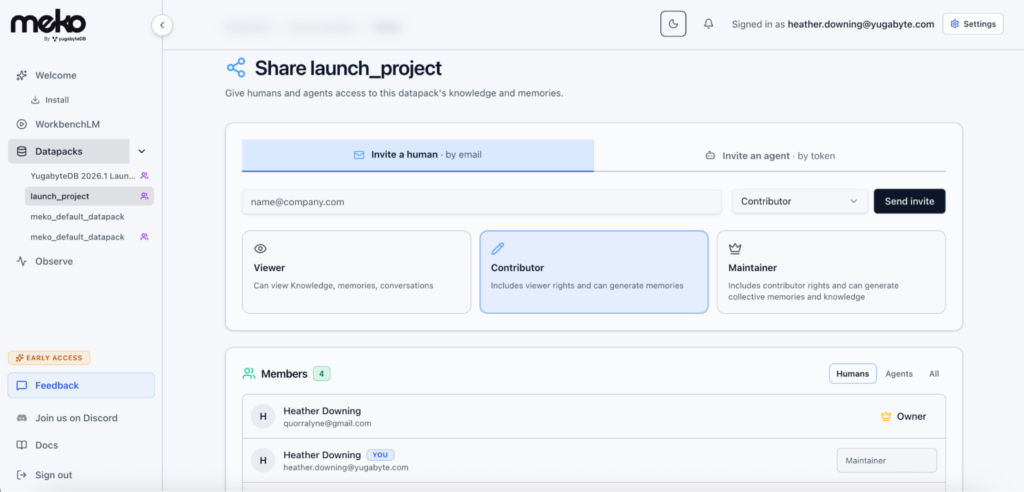
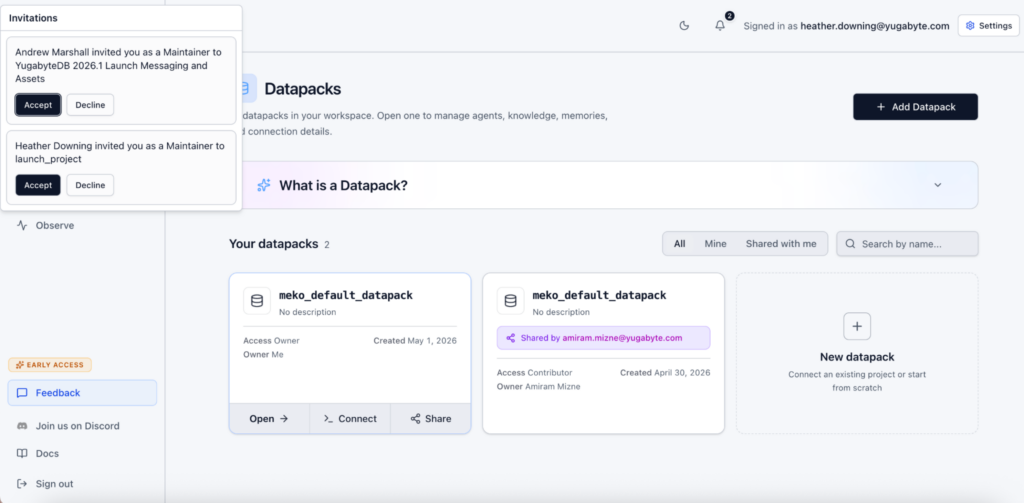
They get a notification to accept it, connect their own agent to the same datapack, and now both of you are working from the same knowledge and memories.
Look through your agent’s memories and promote the ones that matter. The rest will stay private to you as the owner, and only the agent who created it can recall it.
After promoting, return to your datapack and examine the ‘Collective Memory’ that all agents and humans now benefit from when they connect to it. This is how you learn as a group.
What to Expect Using Meko
Memory creation takes just a few seconds. The system is extracting entities and building graph relationships behind the scenes. The team is working on making this faster, but it’s fine for normal use. You won’t notice it mid-conversation, but if you’re doing a batch of writes, just know it takes a beat.
For now, sharing this data is a human-gated step. Visit the portal to share/promote memories among your agents or team members. Default behaviors are coming soon, but private is the current default, so you will need to manually log into the portal and promote a memory to collective sharing. Files in the Knowledge Base are already public for any agent that has access to the datapack.
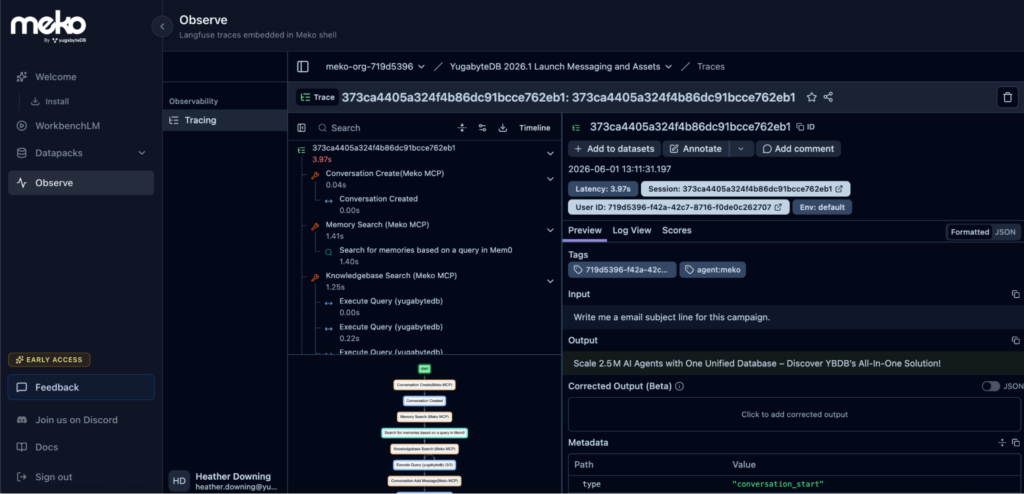
Explore what your agents did. Clicking “decision trace” in conversations within a datapack can take you to the detailed Observe section to dive deep into auditing tool calls and the chain of thought in the Meko portal.
Use it daily to see true value.
- Create more datapacks if you want to separate things by project, team, or whatever makes sense for you.
- Allow the flow that gives you the most value to emerge naturally; you need to practice with it a bit.
- Start small, but don’t hesitate to share promoted memories with another agent, then try sharing a datapack with other users.
- Create separate datapacks for different topics, or migrate your chat history into them to see how much context they provide.
The more we use Meko, the easier it is for us to learn and refine. Meko goes where you go, without adding friction.
TLDR: What You Can Do With Meko
Switch tools without losing context. Built-in memory in any chat client or coding assistant stays in that tool.
With Meko, your project context lives in a datapack that any MCP-connected client can read from. Just switch between tools and pick up where you left off.
Share what your agent learned without sharing everything. Most memory solutions that support sharing have an all-or-nothing approach. Either the whole memory store is visible, or none of it is.
Meko lets you promote specific memories to a shared layer while keeping your raw conversations and per-agent noise private. Your team benefits from distilled insight without having to see every draft and dead end.
Onboard people, not just their agents. When you share a datapack, your new teammate’s agent has the project context from day one. Even better is what they learn from it. Most of the time, we only see the final result of someone’s work as the decision is already made, the code is merged, and the doc is published.
Meko gives you a window into how your most experienced people solved the problem: what they asked, what they rejected, what they corrected, and what they promoted as worth keeping. That’s the learning journey that usually stays invisible. It doesn’t skip lessons or turn anyone’s brain off; it just makes the whole team faster at reaching the right answer together.
Built on a real database that can scale with you. Other memory layers give you vector search or key-value storage.
Underneath every Meko datapack is a full PostgreSQL-compatible distributed database, so semantic memory search, graph relationships, and your document knowledge base live in the same place.
Keep the reasoning trail and the result. Built-in memory remembers what you want.
Meko remembers the WHY. The conversation text, the facts pulled from it, and the ones you kept for the team. Six months later, the answer to “why was it done this way?” is in the datapack, not lost in some old chat log nobody can find.
Try Meko Today
Things are moving fast, and there are still some rough edges being smoothed out. But the core loop works today, you can connect, build context, share across agents and people. Our team is already relying on it daily for real work, and the features in place and in progress are really promising.
If you get stuck on setup, just drop into Discord and ask a question – we’re there to help.
Please also share any feedback (good or bad), and look out for upcoming Meko blogs, where we will keep you posted on the latest developments.